
Go to the content
How to install GlobalProtect Agent on Mac?
Description
Topics: Remote Access and Connectivity (VPN and WiFi)
Client download link: Download Palo Alto Network GlobalProtect VPN client.
Connection parameters
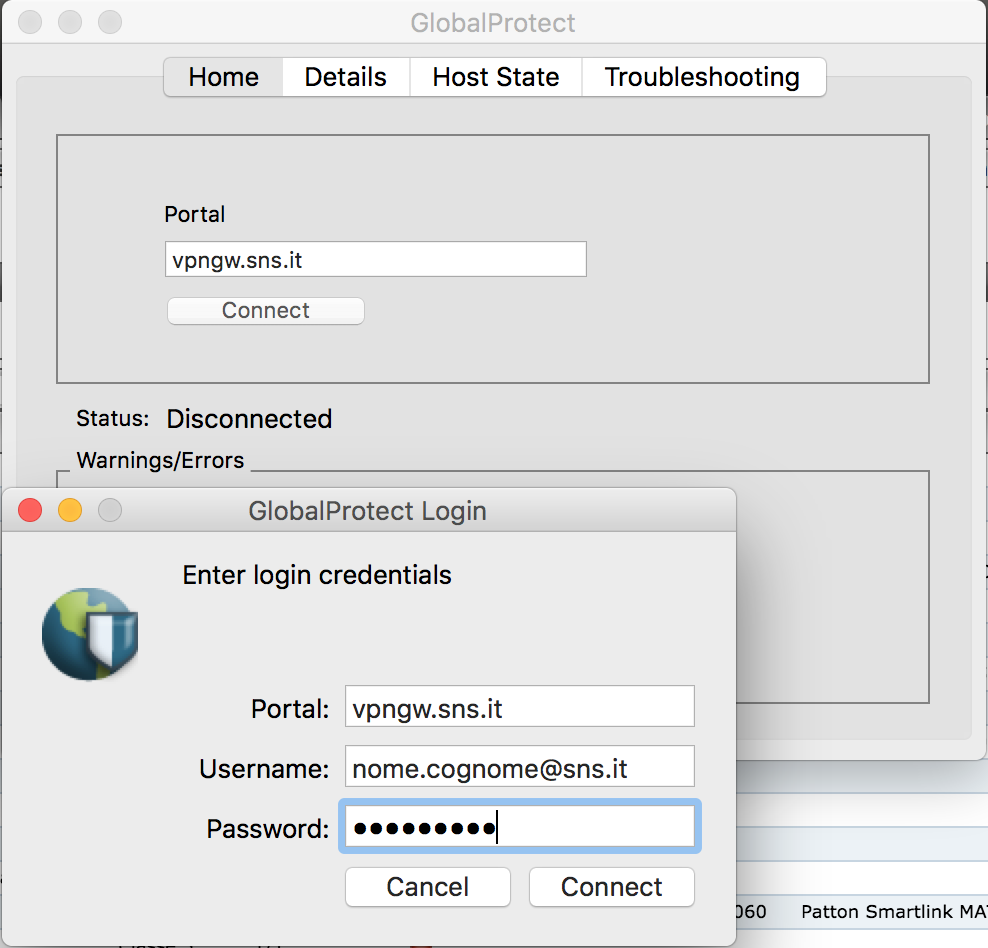
portal : vpngw.sns.it
user: name.surname@sns.it
password: <University password>
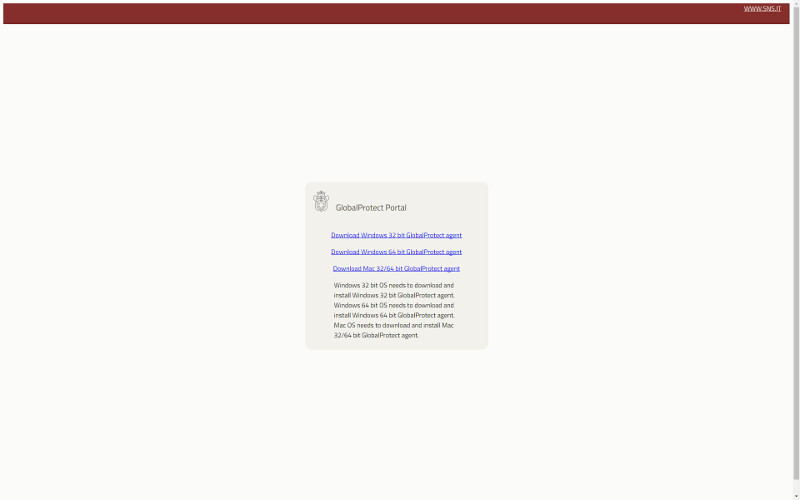
Go to the GlobalProtect Agent software download page and download GlobalProtect agent for Mac
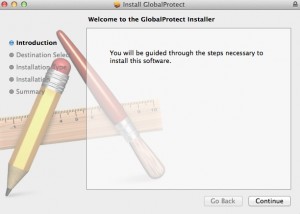
Once the file is downloaded, double-click on the package icon.

Selezionare Continue.
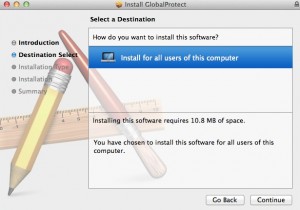
On the next screen, select where to install the software, then press Continue.
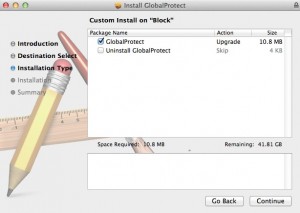
Select the GlobalProtect checkbox and press Continue.
Confirm the installation location and press Install.
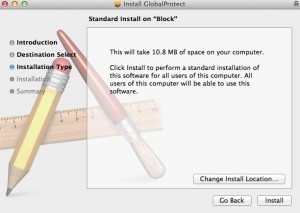
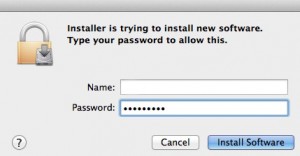
To complete the installation, administrator privileges are required, so enter your username and password.
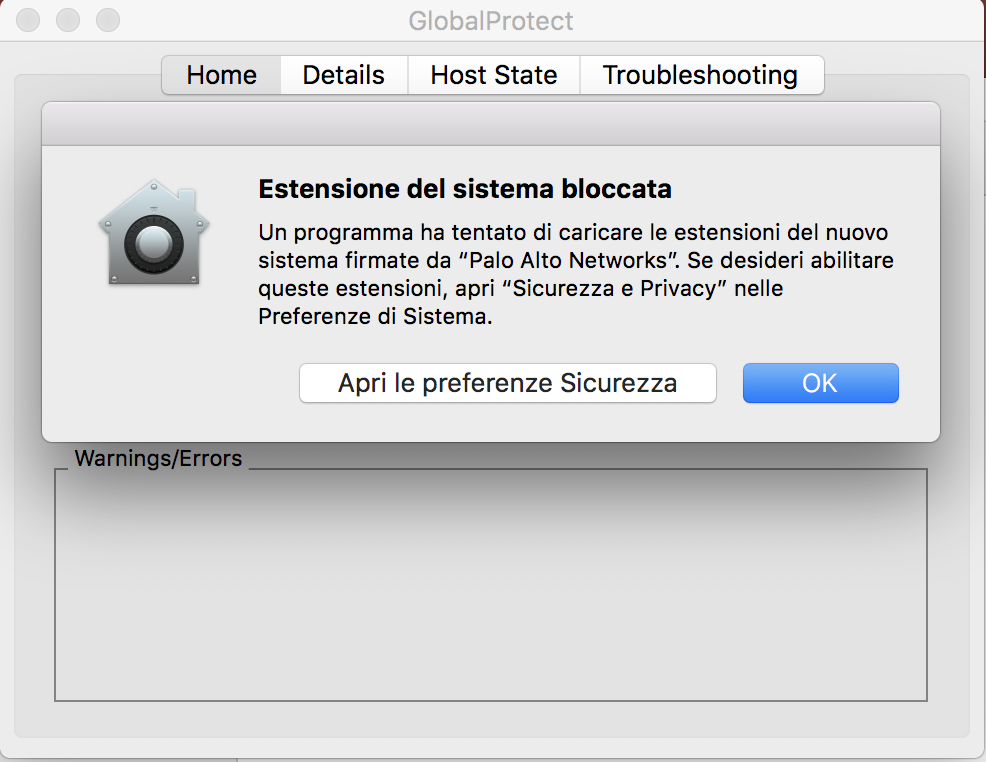
Depending on your system settings, the following screen may appear asking you to enable the “Palo Alto” extension. Click “Open Security Preferences“.
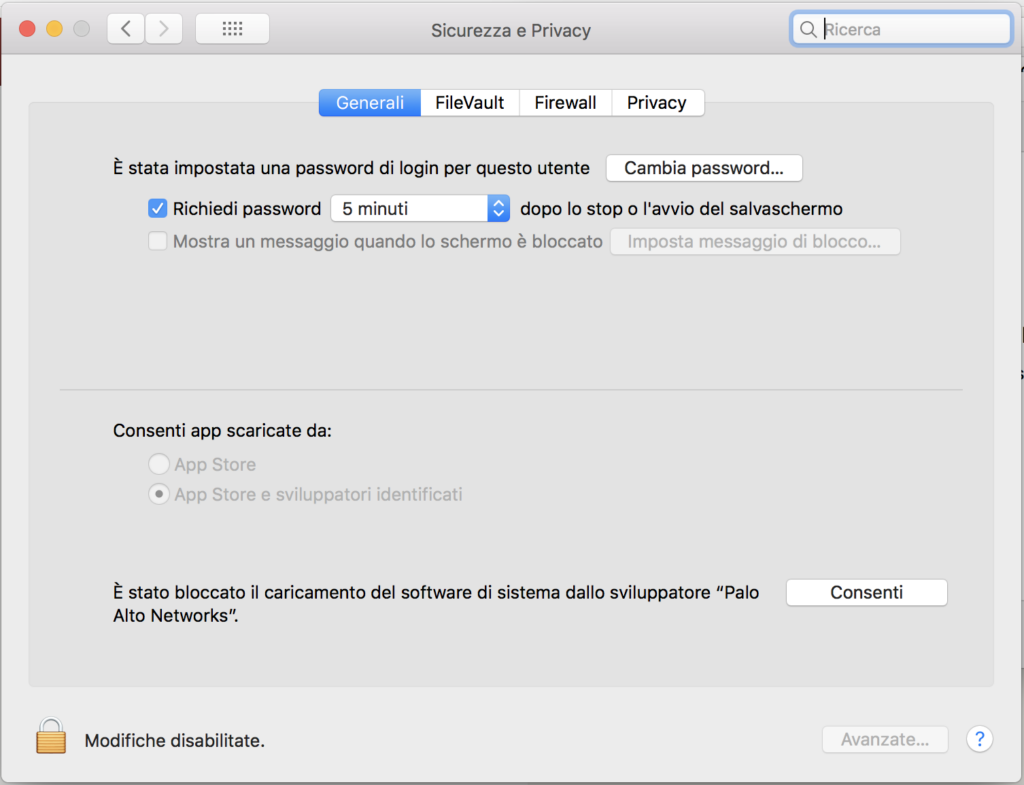
From the System Preferences interface, Security & Privacy panel, click the Allow button next to the words “System software from the developer “Palo Alto Networks” has been blocked from loading,” as shown in the following screenshot.
Once installation is complete, press Close immediately after deciding whether or not to move the installation files to the Trash (the recommended choice is to move them to the Trash).
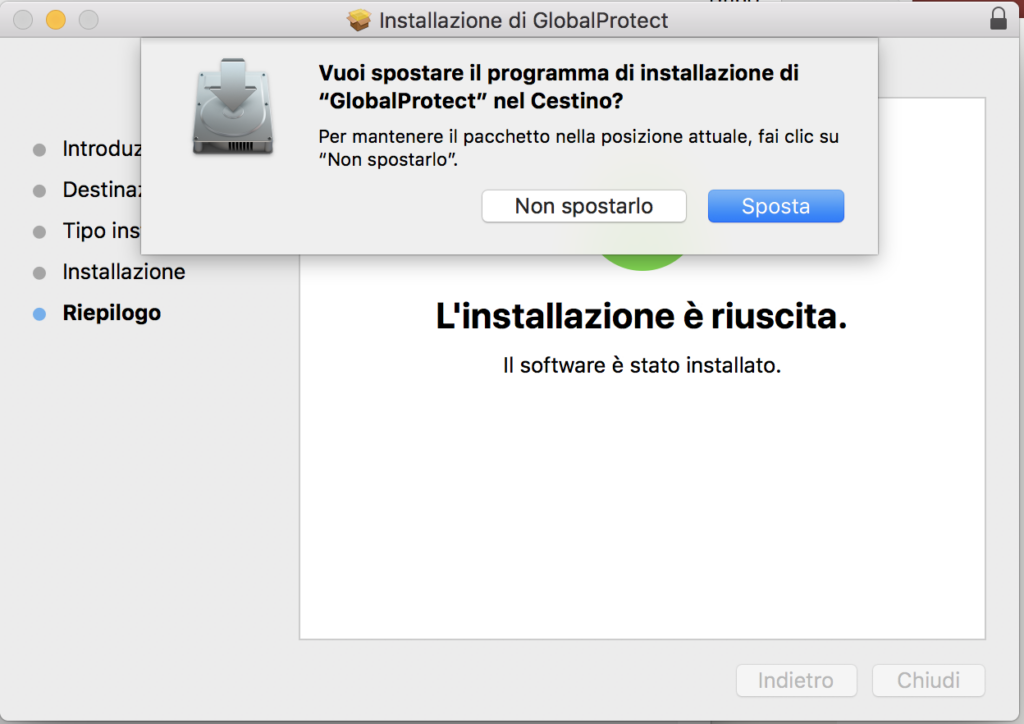
The GlobalProtect Agent is now installed and all that remains is to configure the VPN with the correct parameters as indicated below.
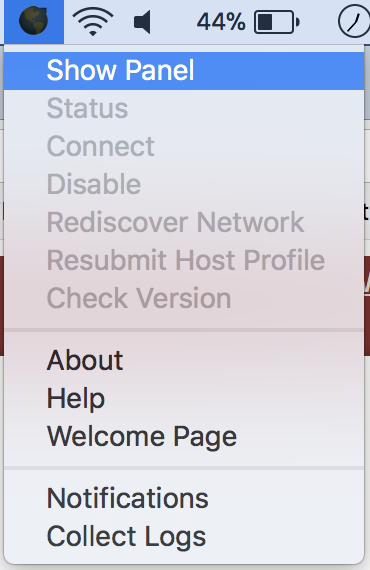
Click the globe icon that appears on the taskbar to open the menu. Then click Show Panel to open the Global Protect control panel.
On the Home tab, enter vpngw.sns.it (without https://) in the portal field and click Connect. A second form will open where you must enter your University credentials in the form name.surname@sns.it. Click Connect again.
Last modification: 05/05/2026