
Go to the content
Wi-Fi Network for Guests and Visitors (GuestSNS)
Every day, the Scuola Normale Superiore welcomes numerous guests for conferences, seminars, and meetings, as well as occasional visitors. To provide them with simple and secure Internet access, the GuestSNS wireless network is available.
This network, after registration, allows limited browsing of essential online services such as email, certain cloud services, and a restricted selection of websites.
Access is valid for up to 5 consecutive days; once expired, a new registration is required.
Features
- Dedicated Wi-Fi access for guests and visitors of the Scuola Normale Superiore
- Limited web browsing to essential services (email, selected cloud services, approved websites)
- Simple registration through a dedicated portal
- Access valid for up to 5 consecutive days
- Access code sent via SMS
Requirements
- Device with Wi-Fi connectivity (smartphone, tablet, laptop)
- Valid phone number to receive the SMS access code
- Initial network password: sns-guest
Designed for
Guest, Visiting
Get started
- Select the GuestSNS Wi-Fi network from your device’s list of available networks.
- Enter the password: sns-guest.
- The system will automatically open the login page.
- If you already have valid credentials, log in directly.
- Otherwise, proceed with the registration.
- Fill out the registration form to receive your access code via SMS.
- Log in using the provided username and the password received via SMS.
FAQ
Position yourself in an area where wireless connection is available (SNS or GuestSNS).
Click on the WiFi icon in the top right bar, make sure the network is active and select the network from the list of available wireless networks (SNS or GuestSNS).
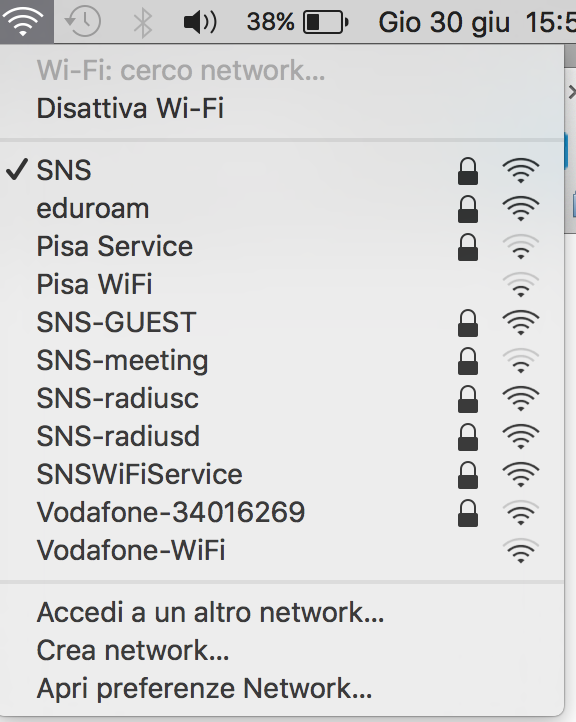
Enter your credentials in the dialog box that opens.
SNS users should use the University credentials.
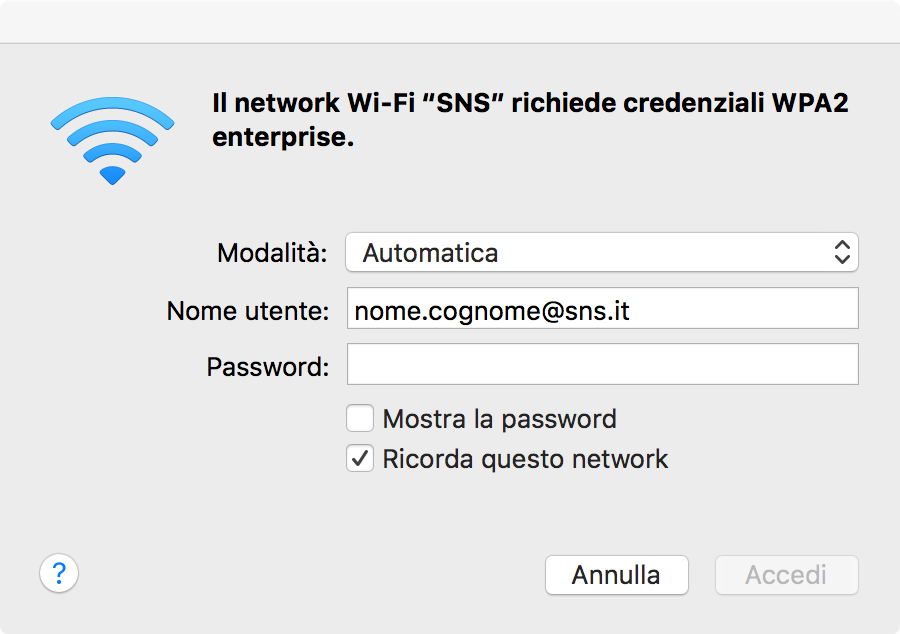
Enable the wireless card
On some laptops, you may need to press a switch on the case to enable the wireless card.
SNS WiFi Configuration
Locate an area where a wireless connection is available (SNS or GuestSNS).
Click the network icons(  or
or  ) in the taskbar.
Select the network (SNS or GuestSNS) and click Connect.
Enter your credentials to connect.
For SNS users, use University credentials.
Some recent Android models require the EAP method to be set to PEAP. After selecting the SNS network, go to the advanced settings and select PEAP from the EAP method drop-down menu.
Check the following points:
- Check if your University account password has been recently changed by logging into Gmail with your @sns.it credentials. If you're unable to log in, your password may have been reset or expired.
- If you changed your password using the appropriate procedure, update the saved credentials on all devices connected to the WiFi-SNS network.
- If you don't remember your password or are unable to log in, please contact the Helpdesk.
Last modification: 04/05/2026