
Go to the content
WiFi SNS
The SNS WiFi network is the School's wireless network, reserved for users with an active institutional account (@sns.it). It allows you to access the Internet and the School's network resources using your University credentials. For assistance, please contact the Helpdesk.
Features
- Access to the School’s wireless network using institutional credentials.
- Connection available for all devices that support secure Wi-Fi networks with authentication.
Requirements
- Having an active institutional SNS account (@sns.it).
- Knowing your University credentials (email address and password).
Designed for
Faculty members, Students, Technical and administrative staff
Get started
- Select the WiFi Network icon in your device’s taskbar.
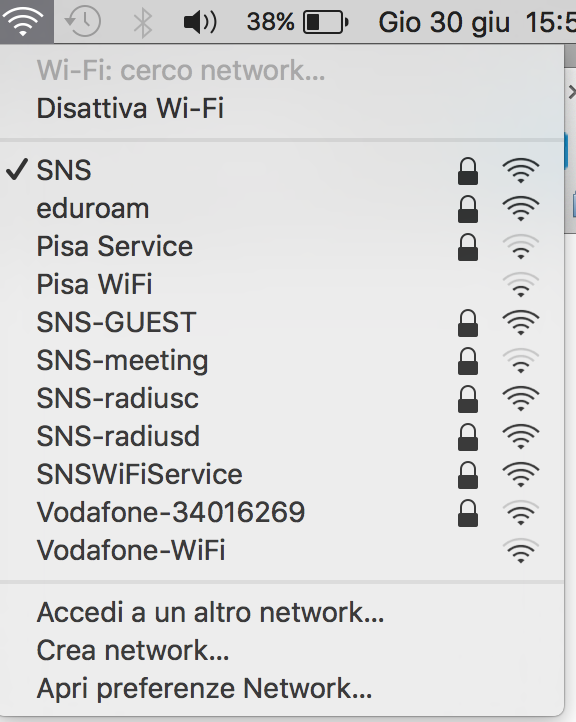
- Locate and select the SNS network from the list of available wireless networks.
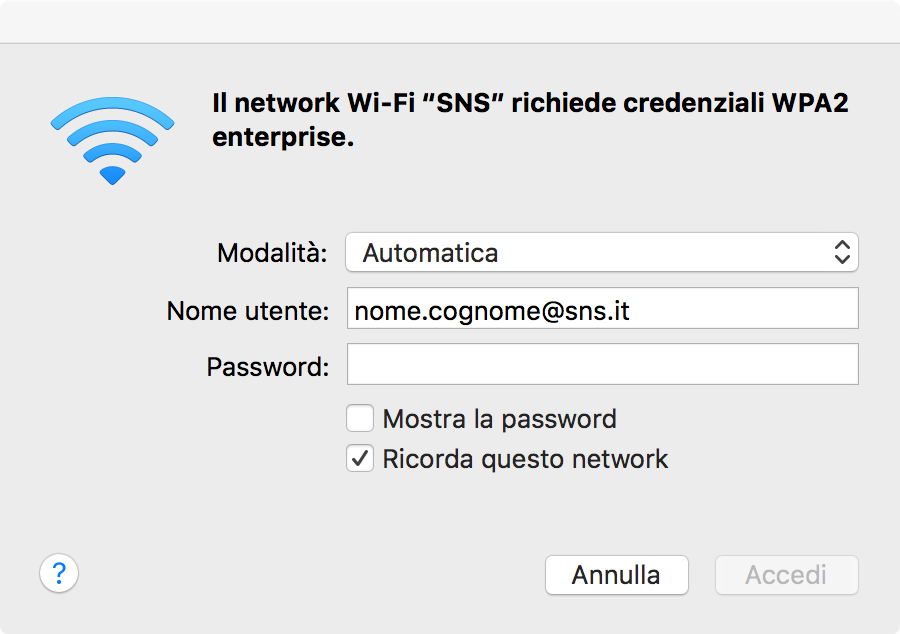
- Enter your University credentials: email address and password.
Solutions to common problems
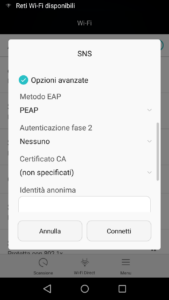
- “Anonymous identity” field on Android devices: Some Android devices display a field called “anonymous identity” after the username field. Leave this field blank, scroll down, and enter your University credentials password.
- Unable to connect after changing your password: Update your saved credentials on all devices already connected to the SNS WiFi network.
- Connection issues on recent Android models: Some recent models require changing the EAP method to PEAP. After following the standard steps, select Advanced and choose PEAP from the drop-down menu.
FAQ
Position yourself in an area where wireless connection is available (SNS or GuestSNS).
Click on the WiFi icon in the top right bar, make sure the network is active and select the network from the list of available wireless networks (SNS or GuestSNS).
Enter your credentials in the dialog box that opens.
SNS users should use the University credentials.
Enable the wireless card
On some laptops, you may need to press a switch on the case to enable the wireless card.
SNS WiFi Configuration
Locate an area where a wireless connection is available (SNS or GuestSNS).
Click the network icons(  or
or  ) in the taskbar.
Select the network (SNS or GuestSNS) and click Connect.
Enter your credentials to connect.
For SNS users, use University credentials.
Some recent Android models require the EAP method to be set to PEAP. After selecting the SNS network, go to the advanced settings and select PEAP from the EAP method drop-down menu.
Check the following points:
- Check if your University account password has been recently changed by logging into Gmail with your @sns.it credentials. If you're unable to log in, your password may have been reset or expired.
- If you changed your password using the appropriate procedure, update the saved credentials on all devices connected to the WiFi-SNS network.
- If you don't remember your password or are unable to log in, please contact the Helpdesk.
Last modification: 04/05/2026