
Go to the content
How to install GlobalProtect Agent on Windows?
Description
Topics: Remote Access and Connectivity (VPN and WiFi)
Client download link: Download Palo alto Networks GlobalProtect VPN client
Connection parameters
portal: vpngw.sns.it
user: name.surname@sns.it
password: #University password#
Go to the GlobalProtect Agent software download page and download the Windows 32 or 64 version depending on your system (to find out if your computer has a 32 or 64-bit version, follow these instructions).
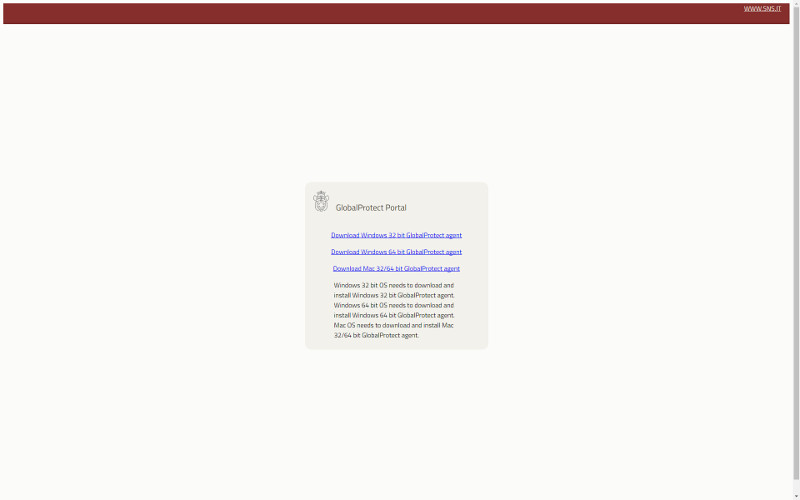
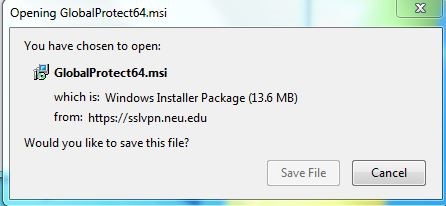
Once you click on the correct version, Firefox and Chrome browsers display a dialog box like the one below. Run the file.
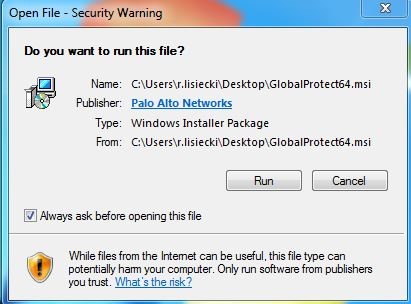
Continue with the installation through the Wizard by pressing the Next button without changing any options.
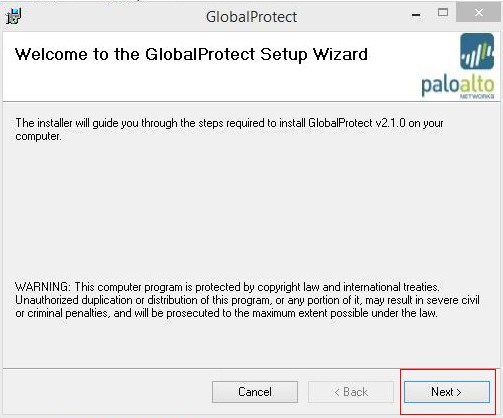
When the installation is complete, press Close.
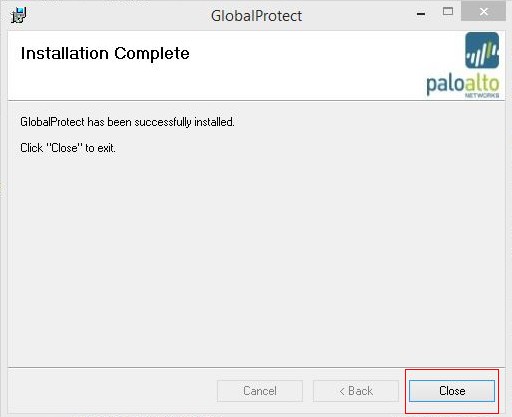
The GlobalProtect Agent is now installed. Now follow the instructions below to configure the VPN.
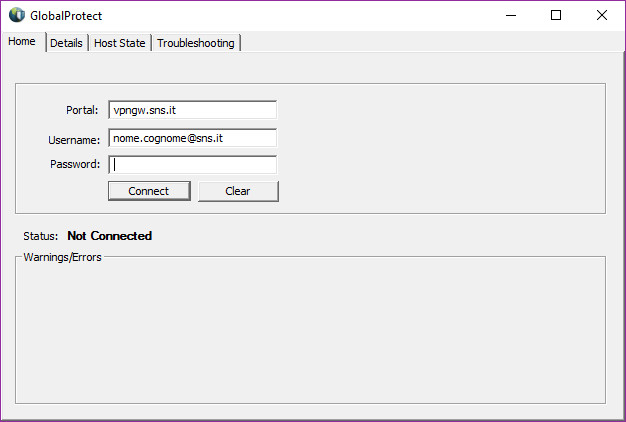
In the Home tab, username and password fields, enter your university credentials and in the portal field enter vpngw.sns.it (without https://).
Last modification: 05/05/2026